


Price: ₹8,999 - ₹2,659.00
(as of Feb 20, 2026 09:03:16 UTC – Details)

Product Description


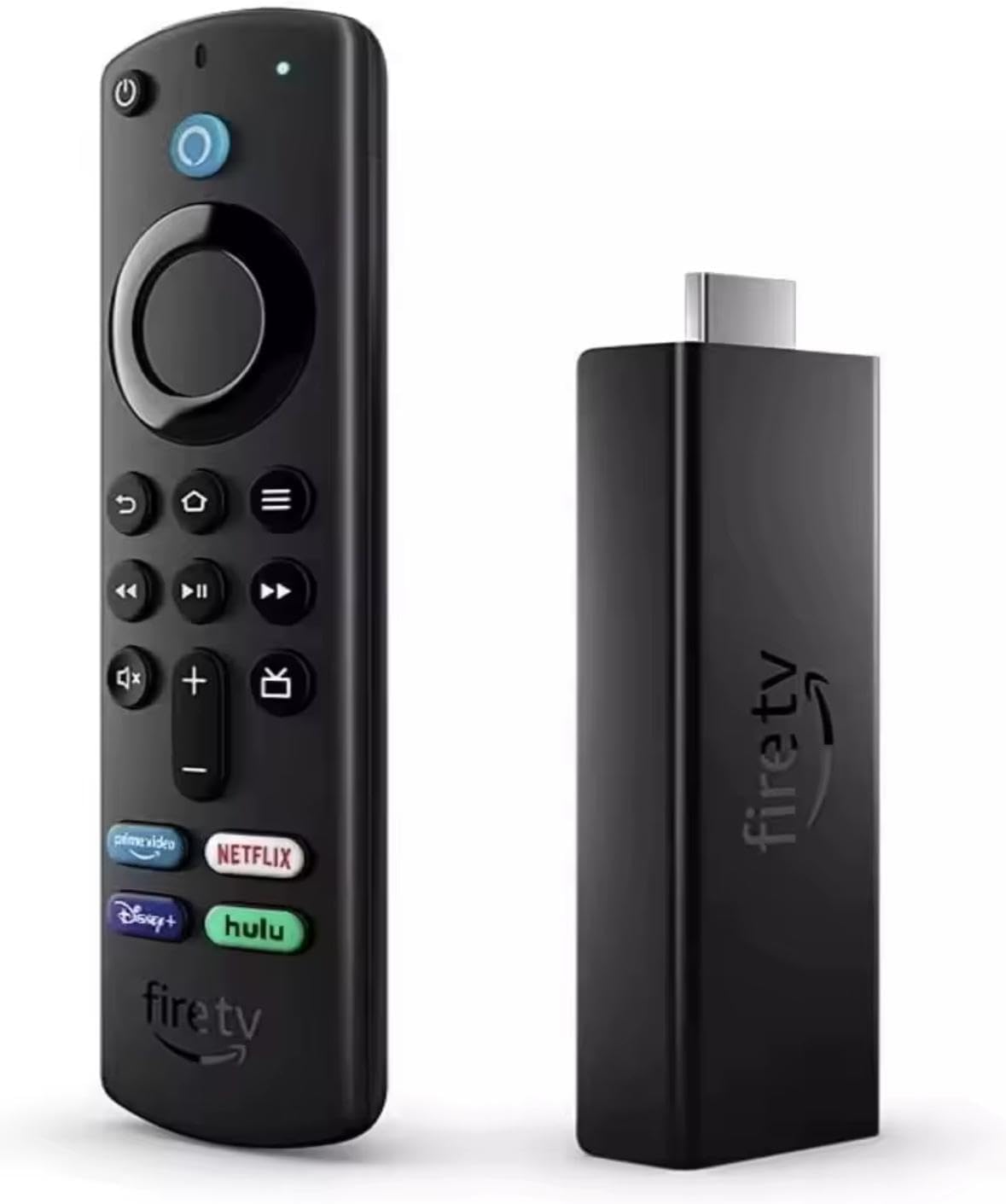
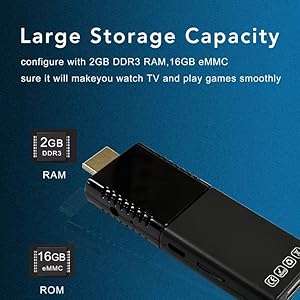
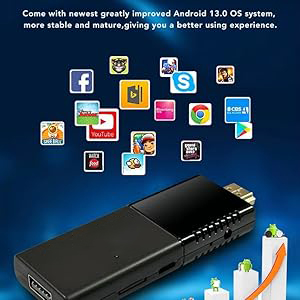
WeFly Fire TV Stick 10K, Ultimate Streaming Experience, Dual Band WiFi 2.4G/5G, 2GB RAM, 16GB Storage with HDR Support, Netflix, Disney+, YouTube | Firre TV Stick
1. Getting Started
1. Connect the box to the TV with HDMI cable, connect box to the power adaptor, Connect mouse, air mouse or other input devices with USB port
2. After the device and cable connected, power led turn to blue.

1.1 Basic Operations
3. After the device and cable disconnected, Power LED turns off
4. Under power on mode, press remote control’s power button, device is entering into sleep mode.
1.1.1 Power On/ Off and Sleep
5. Under sleep mode, device will be wake when you press remote control’s power button,
Top Quality Fire TV Stick 10K Ultra HD Video TV Fire Stick 4K With Alexa Voice Remote Android TV Stick
1.1.2 Open applications
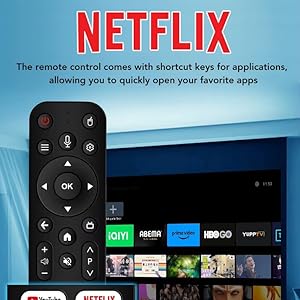
Use remote control’s arrow keys to choose the wanted program, click OK button to open the selected program
1.1.3 Switch in the applications
Click “My Apps” to view recently used programs, click program icon to switch application arbitrarily
1.1.4 Close Applications
Click icon to view recently used programs, choose one of them by click and hold, drag it to blank area to close the application
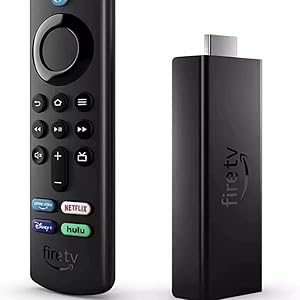
Fire TV Stick 10K Ultra HD Video TV Fire Stick 10K
This function only operated in the condition of Mouse mode
1.1.5 Back To Home Screen
Click icon to return to home screen
Click icon on remote control to return to Home Screen
1.1.6 Read External Storage Data
Read U Disk
Insert U flash disk or removable hard disk into USB port in the status of power on, icon appears in top left corner of the desktop, open “FileBrowser”, the identified USB(A:) will appear under “Local Disk”, U disk’s operation is available now
Read TF card
Insert TF card into the device in the status of power on, when icon appears in top left corner of the desktop, open “FileBrowser”, the identified External Storage Card will appear under “Local Disk”, TF card’s operation is available now
1.1.7 WIFI Function
Home Screen →
SETTINGS →
Network Select “Wi-Fi” to open WIFI function
Choose hotspot Input Password→ Connect to the network
1.1.8 Ethernet Function
Home Screen → SETTINGS → Network Select “Ethernet” to open Ethernet function Insert network cable, network will be connected automatically 1.1.9 WLAN Hotspot Operations on the box: Home Screen → SETTINGS → Other → More → Setting → More… → Portable hotspot → Select “Portable Wi-Fi hotspot” 1 Uncompress the downloaded firmware (ROM) to the root of and SD card(format your SD card first). 2 Insert the SD Card into powered-off Box (power cable not plugged in) with no external USB storage attached. 3 Using a toothpick, insert into the AV port of Box, press and hold the hidden button while plugging power in.Do not release until you see the screen of Robert Logo. 4 Update will run automatically. When it is done then choose “Reboot”. You can disregard any errors that display after the update, they are not relevant to your device. 5 When system has rebooted then you should first check to ensure wifi is working by going to Settings->Wi-Fi. Turn on the wifi if it’s off and you should be able to connect.
🎥 10K Ultra HD Streaming Enjoy cinema-quality resolution with support for 10K Ultra HD and HDR for stunning detail and lifelike colors
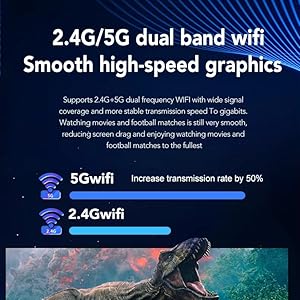
⚡ 5G Dual-Band Wi-Fi Support Say goodbye to buffering. Lightning-fast 5G compatibility ensures smooth streaming across all platforms
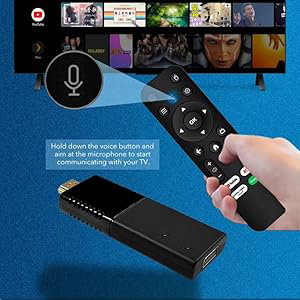
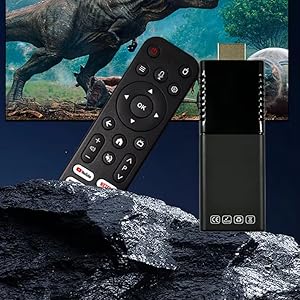
🎙️ Alexa Voice Remote (Enhanced) Effortlessly control your TV with your voice — search content, control smart devices, or ask questions with just a word
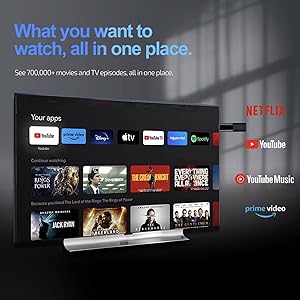
📺 Preloaded Streaming Apps Instantly access Netflix, YouTube, Prime Video, Hulu, Disney+, Sling , and more — no additional setup required
🔒 Advanced Parental Controls & Profiles Keep your family safe with customizable viewing profiles and robust content restrictions


Reviews
There are no reviews yet